# AI editing
> Select text on an HTML Clay page, press Cmd+J, and have an AI agent installed on your computer rewrite that section, keeping the change in your file.
Source: https://htmlclay.com/docs/guide/ai-editing/
Select a sentence in any HTML file that loads ClayJS, press ⌘J (Ctrl+J on Windows and Linux), and type what you want. HTML Clay runs Claude Code on your computer with no tools, the rewrite appears in place, and Keep saves it. The ClayJS side of that flow, including the selection chip and the Keep and Revert bar, is the [`ai-edit` plugin](https://clayjs.com/docs/plugins/ai-edit/) page.
AI editing is built in and on by default. It needs no `` declaration and no approval prompt, and it never takes the document's handler slot.
## Before you start
You need HTML Clay or Hyperclay Local, a file that loads ClayJS with the `ai-edit` plugin, and Claude Code or Codex installed and signed in on your computer. Make sure AI Editing is checked in HTML Clay's tray menu or Hyperclay Local's Options. In Hyperclay Local, start your request with `@codex` if you use Codex.
Add `ai-edit` to the plugins in the ClayJS script tag. The tag from [Get started](https://htmlclay.com/docs/guide/quick-start/) becomes:
```html
```
Open the file through the app. The app does not add the tag for you. The text needs no special markup or ids.
The request holds your words, the element containing your selection and any files you attach. Adding `@page` includes the whole saved page. Your agent sends all of it to its model provider. The app sends this content nowhere else.
## Choose an agent
Claude Code handles requests by default. HTML Clay falls back to Codex if the default agent is not installed; if Codex is your configured default, it can fall back to Claude Code. An explicit `@agent` request never falls back, and a sign-in error does not trigger fallback. Hyperclay Local users can choose Codex explicitly with `@codex`. To use Fable through Claude Code, start your request with `@fable`:
```
@fable Make this friendlier. Keep the rule that late arrivals cannot enter.
```
Use `@codex` instead for Codex. The Codex CLI must be installed and signed in on your computer. The rewrite appears when the agent's request finishes.
## What the agent sees
The agent receives the paragraph's HTML, your selected words and your request. Selecting inside a heading sends the heading. On plain pages, selecting inside a list item or table cell sends that item or cell. Inside a section marked with `data-edit-id`, a list item or table cell sends the whole section instead.
A selection across two paragraphs sends their surrounding element. The agent can rewrite everything inside that element. If only the page's body contains both paragraphs, the agent receives the whole body, with your selected words quoted.
When the whole body is sent, leave the rest of the page alone until you click Keep or Revert. Edits made elsewhere in the body meanwhile are lost however the request ends.
For a paragraph request, adding `@page` saves the file first, then sends the whole saved page as context. When the whole body is already sent, `@page` saves nothing and adds nothing.
Adding `@name.ext` attaches that file from the document's folder as context. In Hyperclay Local, attachments come from the served folder. Hidden files and folders, such as `.env` or `.git`, cannot be attached. Symlinks cannot bypass that rule or reach outside the folder. You can attach up to 8 files, at most 256 KB each and 1 MB total.
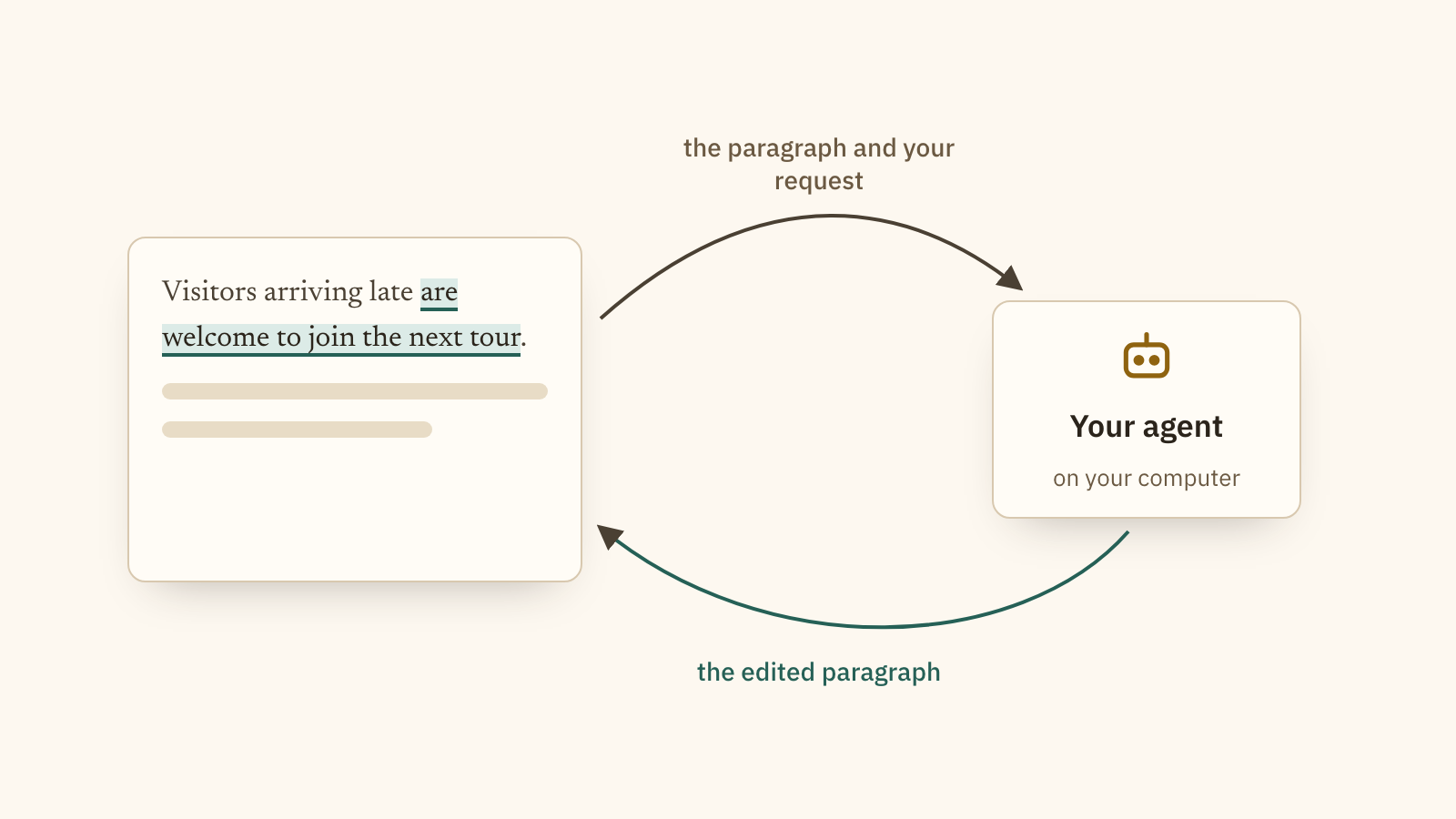
The app passes the paragraph and your request to your agent, and your agent sends the paragraph to its model.
Claude Code, Fable and Codex run with no tools. They answer in one reply. They can only return text. An agent command you add yourself runs as you wrote it, in the file's folder. ClayJS checks the reply before showing it. A reply that adds an executable script, an event handler or a `javascript:` link is refused.
## What is sent, and where it goes
[SECURITY.md](SECURITY.md#ai-editing) says exactly what is sent and where.
- **The agent runs with no tools.** Claude Code (the default) and Fable run with `--tools ''`, `--strict-mcp-config` and one turn, in an empty scratch folder. Codex runs in a read-only sandbox with its shell, app, browser, plugin and image features disabled, in an empty scratch folder. agy is refused, because it can read files without asking and has no switch to stop that. An engine you define yourself under `aiEdit.engines` in `config.json` runs exactly the command you wrote, as you, and HTML Clay does not restrict it.
- **What leaves the machine.** The agent CLI sends its prompt to its model provider: the element's HTML, the selected text, your request, any file you named with `@name.ext`, and with `@page` the whole saved document. A `@name.ext` file must resolve, after symlinks, to a regular file inside the document's folder. At most 8 files, 256 KiB each and 1 MiB in total.
- **Who can ask.** A request needs the document's `Save-Token`, the same capability that saves the document. One AI edit runs per document at a time, for at most five minutes.
- **What comes back.** The reply goes to the page and nowhere else. The page refuses a reply that adds a script, an inline event handler, a `javascript:` URL, `srcdoc` or an embedding element, and nothing is saved until you click Keep.
## Turn off AI editing
Uncheck "AI Editing" in HTML Clay's tray menu to turn it off. In Hyperclay Local, the same setting is in Options. Turning it off cancels any edit that is running.
To turn it off for one file, remove `ai-edit` from the `plugins=` list in the ClayJS script tag. Save the file and reload the page.
## When it does not work
1. If the bar says an agent was not found or is not signed in, install or sign in to that agent, then send again. HTML Clay can fall back when a default CLI is missing, but an explicit `@agent` request and a sign-in failure need your attention.
2. Unknown `@name`: the panel lists the agents it knows. Remove the name to use the configured default, or use `@fable` or `@codex`.
3. AI editing is turned off, with no Send button: enable "AI Editing" in the app's menu.
4. The shortcut does something else or nothing: select some text first. If the browser keeps the shortcut, click the AI chip. If no chip appears, check that the file is open through the app and AI editing is on.
5. Another request is running: wait for it to finish. Each file handles one request at a time.
6. Reply refused for adding code: the original stays in place. Ask again without the code, or add code by editing the file.
7. "reply is not a single" element or "the model declined this request": revise the request and send again.
8. The selected element is too large: select text inside a smaller element. Selecting fewer words inside the same element does not help. If that single element is too large, edit it in the file.
9. A request runs for five minutes: it stops and restores the original paragraph. For a whole body request, the recovery rule above applies to the whole body.
10. Attachment refused: check the status line against the attachment limits above. A missing or hidden file stops the whole request. So does a file outside the folder or over a limit.
11. Keep reports a save error: try saving the page again. Copy the rewrite before reloading or closing the page. The rewrite being visible does not confirm a save.
## Where next
For an agent restructuring a whole page by editing the file directly, see [live updates](https://htmlclay.com/docs/live-sync/). [Programs](https://htmlclay.com/docs/programs/) covers connecting a page to a program on your computer. The [JSON API](https://htmlclay.com/docs/json-http/) lets programs read and change parts of the document as JSON. Find the other guides in [the docs](https://htmlclay.com/docs/).